You don't have to type a book in by hand. Give the system an ISBN and it fills in the title, authors, cover and description for you. All you do is check the result and save. If you have a stack to get through, see the article on adding many books at once.
Open the Add Book page
Select Books in the left menu, then select Add Book (number 1 in the picture). You can also select Add a Book on the Dashboard. The arrow beside the button opens a short menu, and Add Many (number 2) is for a whole shelf.

Find the book
The ISBN is the number above the barcode, usually on the back cover. It gives you the most reliable result. You have three ways to enter it:
- Scan the barcode with a barcode scanner.
- On a phone, select Scan to use the camera.
- Type the number. Hyphens don't matter.
If there's no ISBN to hand, type the title instead. A title search takes the best match it can find, which may be a different edition.
Then add the book. The numbers match the picture below.
- Select Find. The form fills in.
- Check the details against the book in your hand, starting with Book Title and the cover.
- Select Save Book.
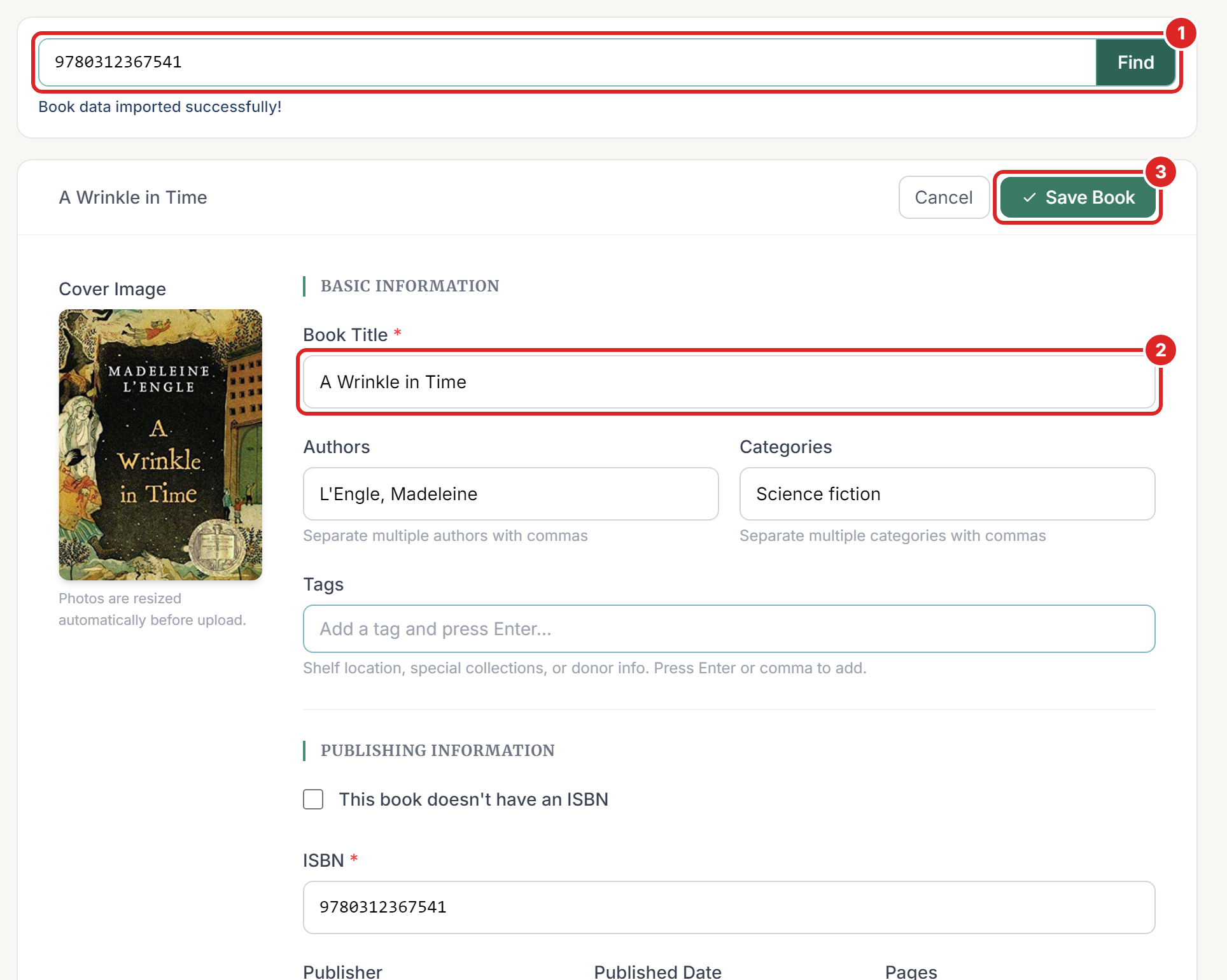
You return to the Books list, with a green message at the top.

What to check before you save
The details come from an outside book database, ISBNdb, or from Google Books when ISBNdb doesn't have the book. When they come from Google Books, a "Powered by Google" logo and a View on Google Books link appear under the description. On Add Many Books, they appear under the search box. Neither source is always right. It can return the wrong book for an ISBN, a cover that doesn't match, or a description in another language. It only takes a few seconds to look.
- Book Title is the only field that every book needs.
- Authors and Categories take several names, separated by commas.
- Tags are your own labels, such as a shelf location or the name of a donor. Press Enter after each one. Tags are what you use to find books later, because the search box doesn't look at them.
- Cover Image can be replaced with your own photo. Select the cover and pick a JPEG, PNG or WebP picture up to 10 MB. Photos are resized for you.
- Overview / Description is worth keeping. Search reads it to work out what a book is about.
If you search again on the same page, fields that the new book doesn't have keep the old book's text. Select Cancel and start again if you searched for the wrong book.
Add a book by hand
Older books and homemade books often have no ISBN, and some books aren't in the database. You can fill in the form yourself.
- Tick This book doesn't have an ISBN. The ISBN field disappears.
- Type the Book Title. Add the authors too, so that the book is easier to find.
- Add a description if you can. Without one, search has much less to go on.
- Select Tap to add cover to add a photo of the cover.
- Select Save Book.
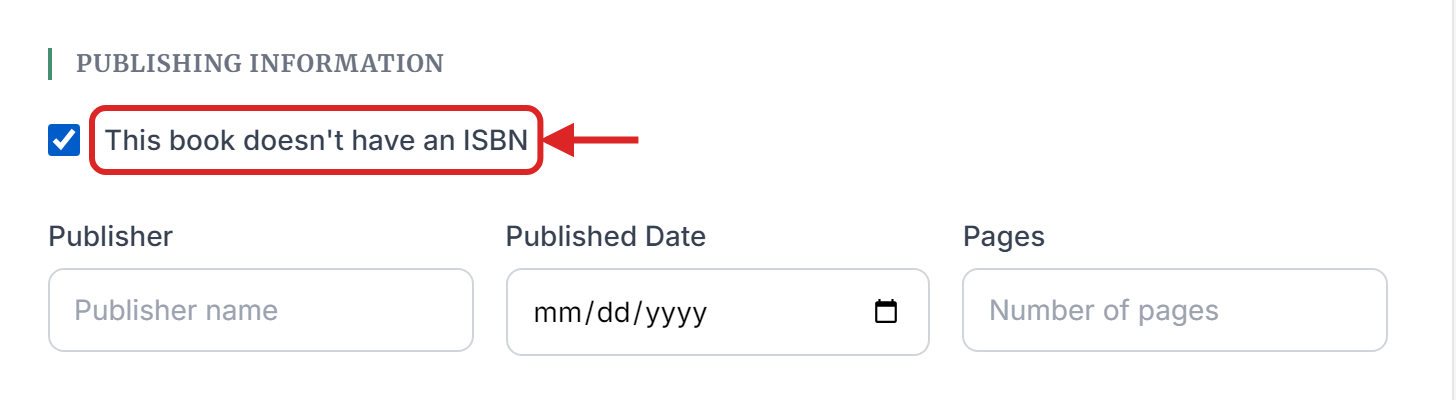
If the book has an ISBN that the database doesn't know, leave the box unticked and type the ISBN yourself.
Add another copy
Add the book again with the same ISBN. You won't get a duplicate, because the system adds a copy to the book you already have. For a book with no ISBN, this works when the title and authors match exactly.
This only adds a copy. Anything you change on the form is ignored, including tags, so make those changes with Edit on the book's page. The green message still says the book was created, so check the copy count if you're unsure.
To see every copy, open the book and select the Copies tab (number 1 in the picture).
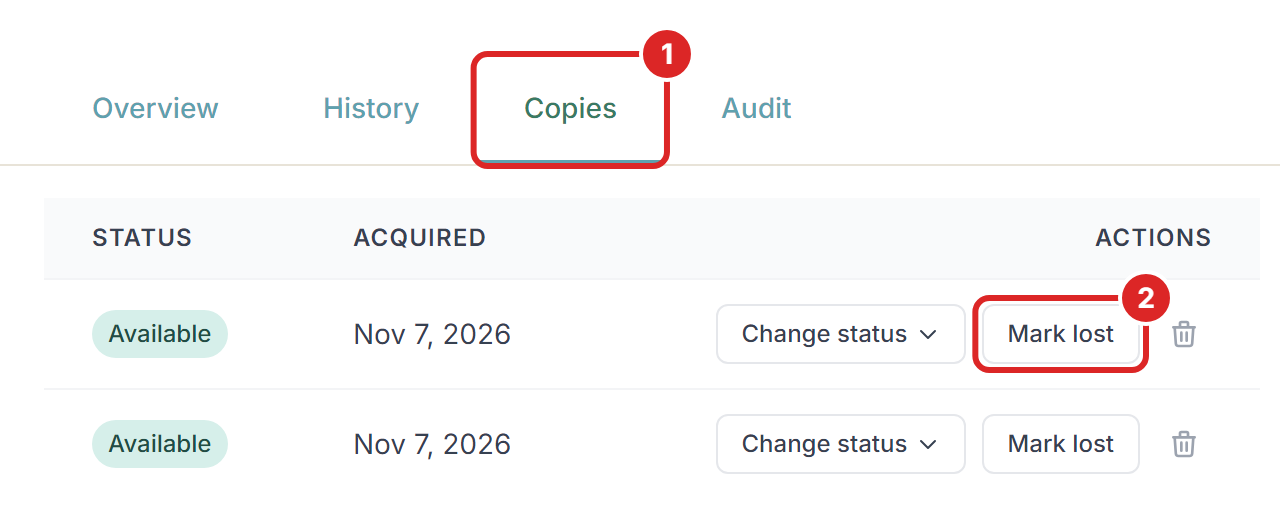
After you save
- You can lend the book and find it by title or ISBN straight away.
- The age range appears shortly afterwards, and searching by description starts working at about the same time. Both happen in the background.
- If the book has no barcode of its own, open its page and select Print Barcode.
If something goes wrong
"Book not found" The book database doesn't know this ISBN or title. Check for typing mistakes, or try the title instead of the ISBN. If it still isn't found, fill in the form yourself.

The wrong book came back. Correct the details on the form before you save, or fill it in by hand.
"Please enter an ISBN or book title first" The search box was empty when you selected Find.
"ISBN is required unless the book doesn't have an ISBN" Enter the ISBN, or tick the box for a book without one.
"Title is required" Every book needs a title.
"Cover image must be a JPEG, PNG, or WebP file." Save the picture in one of those formats and upload it again.
"Cover image is too large (max 10 MB)." Use a smaller picture.
"Unable to look up book details. Please try again later." Neither book database is responding. Wait a few minutes, or fill in the form yourself.
"You have reached the maximum number of books allowed by your subscription plan." You'll need to upgrade your plan under My Subscription before adding more books. Extra copies don't count towards the limit, but you can't add one while you're at the limit.
The book doesn't appear when you search by description. It may not have been read yet. Try its title or ISBN, or look again later.