The search box on the Books page does more than match words. It looks at titles and ISBNs, and it also tries to understand what a book is about. That means the way you phrase a search makes a difference. This article shows what works best.
What to type
Select Books in the left menu, type in the search box, and press Enter.
- A word from the title. hatchet finds Hatchet, and winn dixie finds Because of Winn-Dixie. You don't need the whole title, but the words need to be spelled correctly, because hatchit finds nothing.
- An ISBN. Hyphens don't matter, and both the 10-digit and 13-digit forms work. Scanning a barcode into the box works too. This is the surest way to find one exact book.
- The author's full name. gary paulsen finds Hatchet, but paulsen on its own may find nothing. To be sure of finding everything by an author, use the Author filter described below.
- A description of the book. This is where the search is different. You can describe the story without knowing the title.
- An age. books for 8 year olds lists books suited to that age.
Searching by description
Describe the book the way you'd describe it to a colleague. The more detail you give, the better this works.
The numbers match the picture below.
- Type your description. Here it's a boy survives alone in the Canadian wilderness after a plane crash.
- The matching book appears, even though none of those words are in its title.
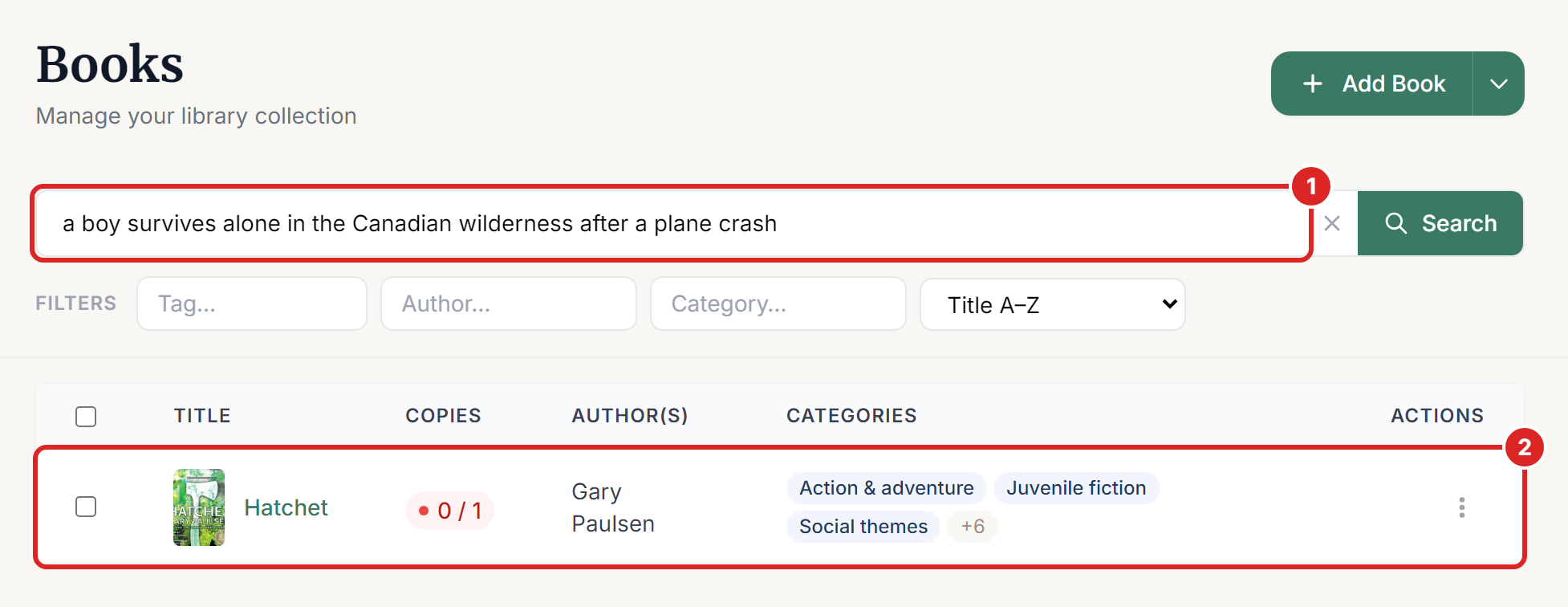
Short, general searches often come back empty. In our test library, survival in the wilderness found Hatchet, but wilderness on its own found nothing. In the same way, dog didn't find Because of Winn-Dixie. If a short search finds nothing, add more detail, or use a filter.
The search reads each book's title, authors, categories and description. A book with no description gives it much less to go on, so it's worth filling in Overview / Description when you add a book by hand.
Searching by age
Include an age in your search, such as books for 8 year olds, for age 12 or adventure for a 7 year old. You get books whose age range includes that age.
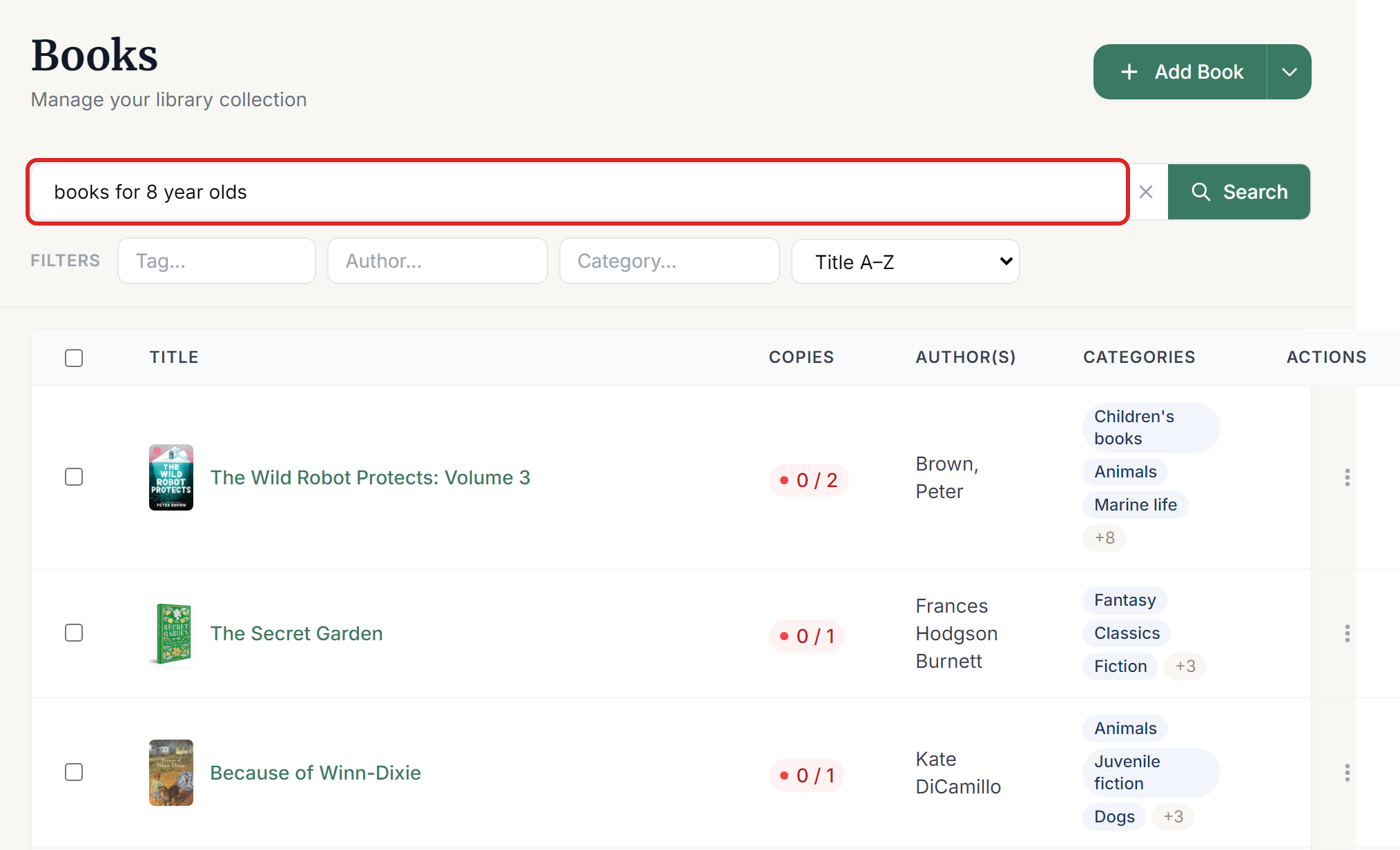
A book that has no age range yet can appear for any age, so check before you recommend it. You can see or correct a book's age range by opening the book and selecting Edit.
Using filters
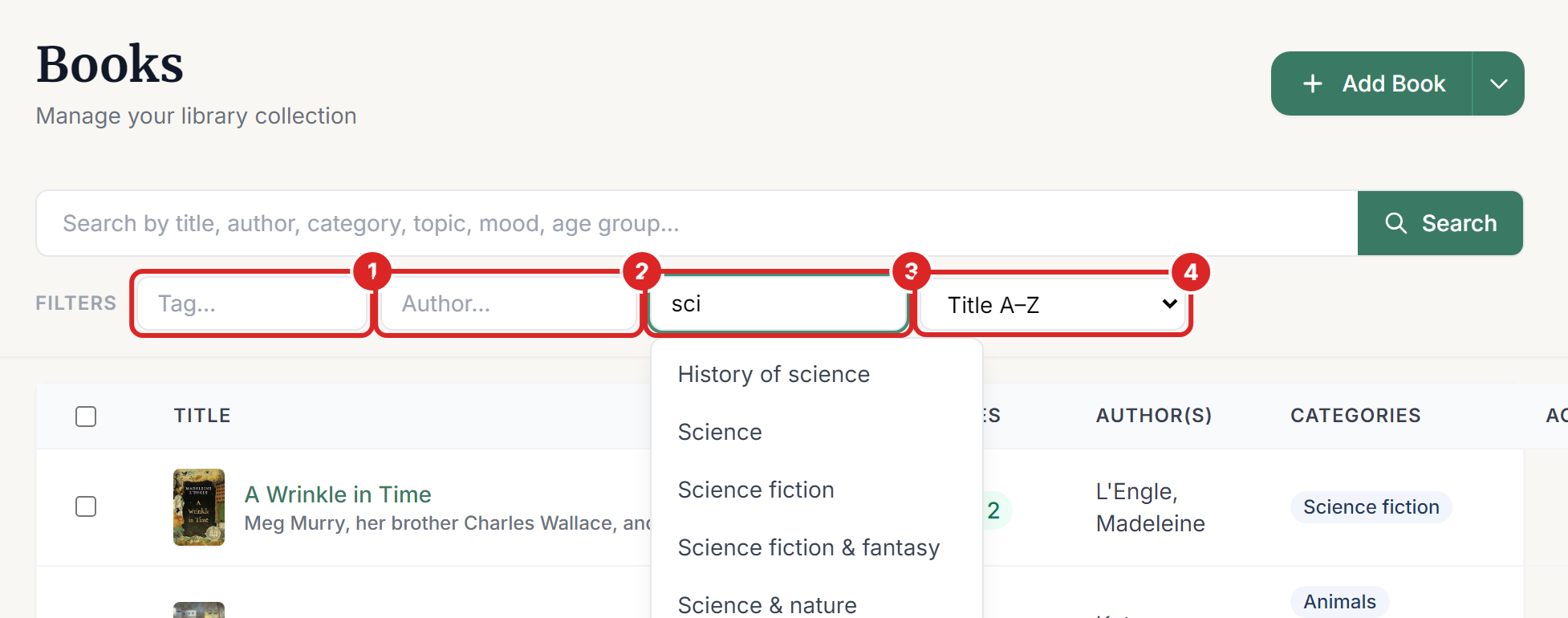
Filters are the reliable way to list every book by an author, in a category or with a tag. The search box doesn't look at tags at all, so a filter is the only way to find them.
- Tag finds books with a tag you added, such as a shelf or a donor.
- Author finds books by that author.
- Category finds books in that category.
- The last list sorts the results by Title A–Z, Recently Added or Recently Updated.
Start typing in a filter and pick from the suggestions.
Each filter you choose appears under the search box (number 1 in the picture). Select the X on it to remove it, or select Clear all (number 2) to remove every filter.
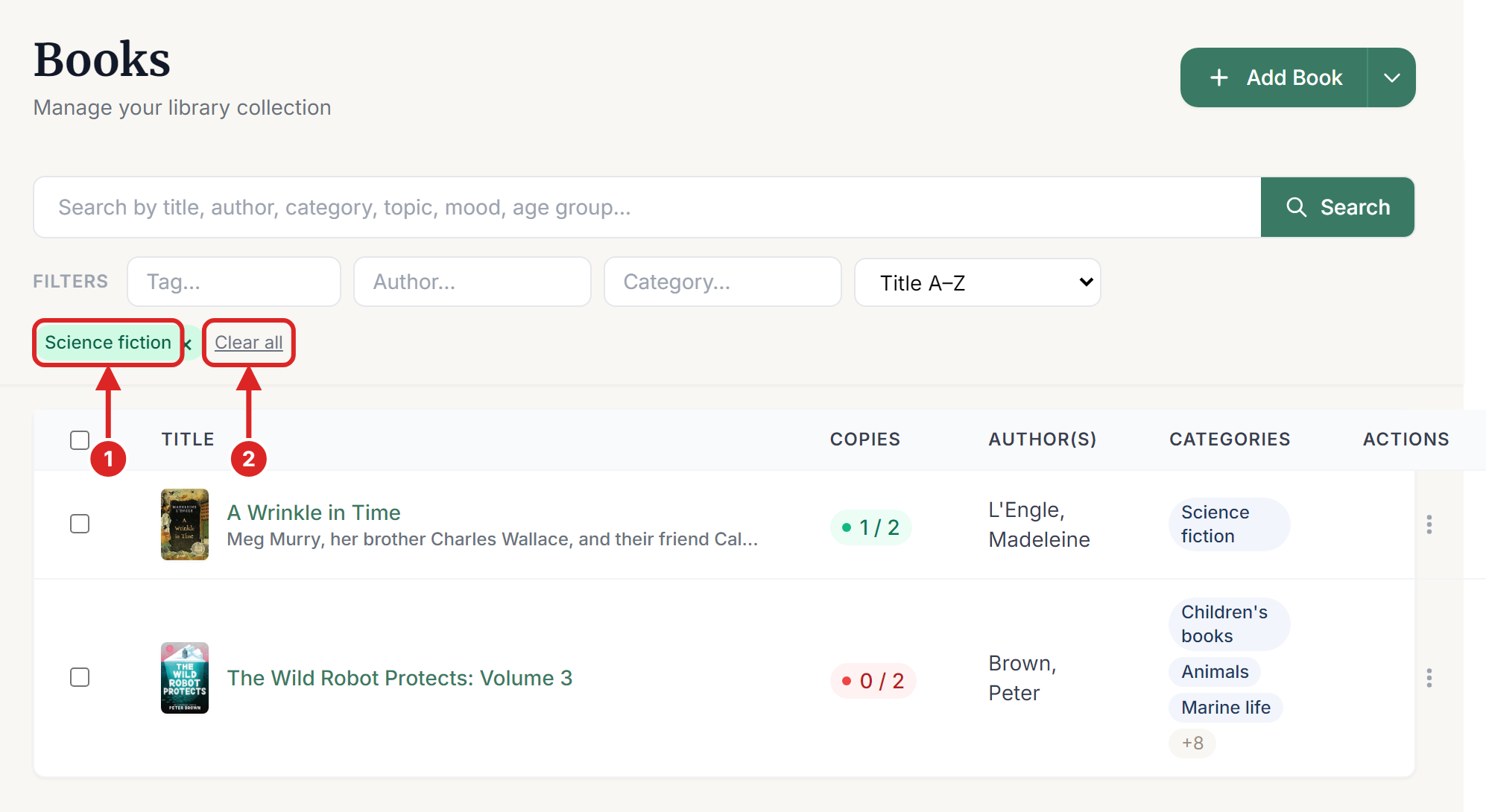
You can use more than one filter at a time. Choosing two authors or two categories shows books that match either one. Choosing two tags shows only books that have both. Filters also work together with the search box, so you can search for books for 8 year olds inside one category.
When you search with Title A–Z selected, the closest matches come first. The other two sort orders ignore how close the match is.
After you add a book
You can find a new book by its title or ISBN straight away. Searching by description or age takes a little longer, because the system reads the book in the background first. If a new book doesn't appear for a description, try again later.
If you change a book's title, overview, authors or categories, it's read again in the same way.
What readers see
Readers search in the same way on a kiosk or through their reservation portal. There's one difference: if a reader's age is known, books that are too old for them are hidden. Books for younger readers always stay visible.
Other search boxes
Not every search box works like this one. The others match the words you type:
- Lend a Book looks for an ISBN or part of a title, and uses the first match.
- Return a Book looks for a barcode, ISBN or part of a title, and uses the first match.
- Circulations looks for part of a book's title. Use Filter by reader to find a person.
- Readers looks for a name, email or ID.
- Add Book doesn't look in your library at all. It searches an outside book database, so a book you already own appears there as well.
If something goes wrong
"No books found" Check the spelling, then try a longer description or the full author name. Select Clear search to go back to the full list. To check whether you own a book, the ISBN is the surest search.
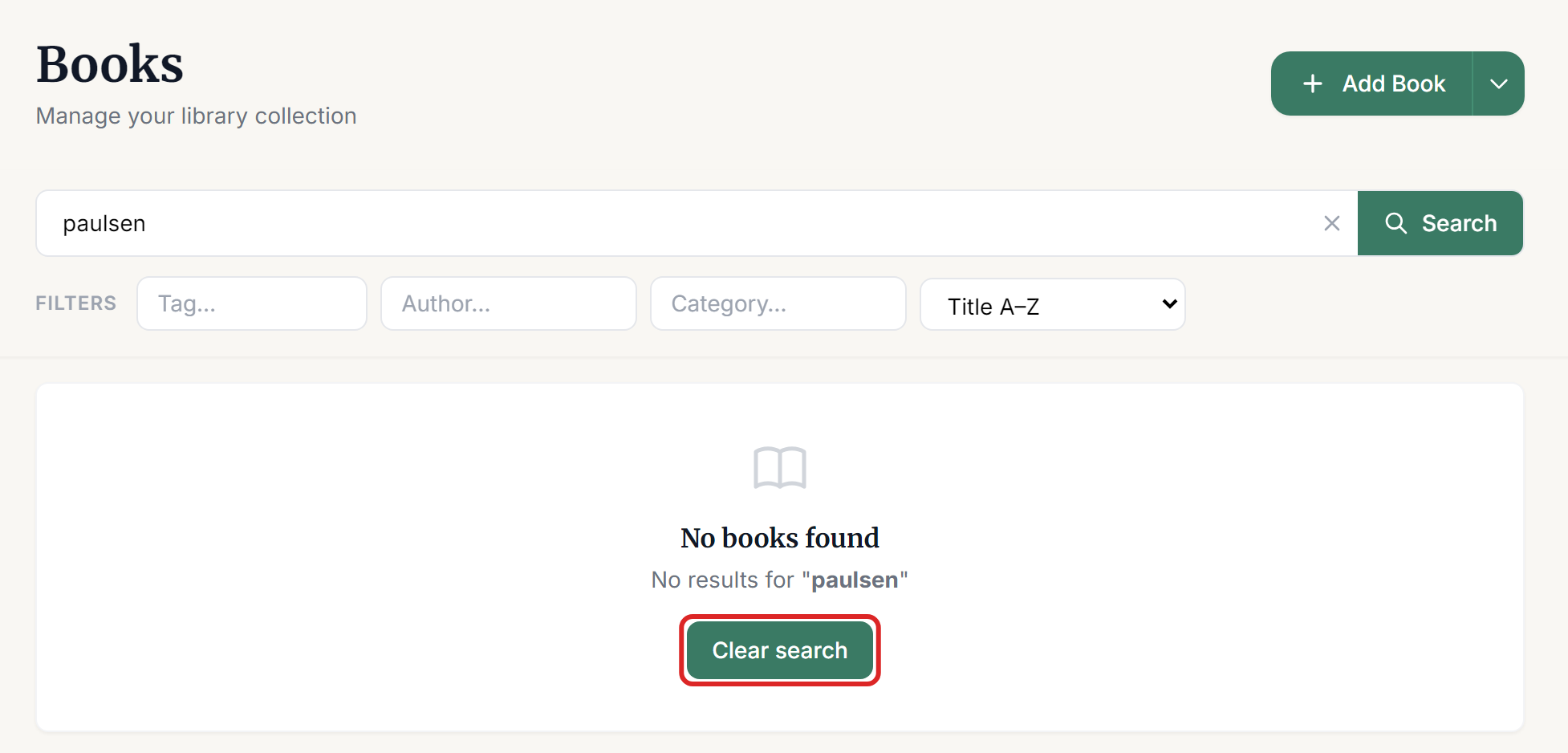
A last name finds nothing. Use the full name, or the Author filter.
A category or publisher finds nothing. Use the Category filter for categories. There's no publisher filter, so search by the title or author instead.
A tag finds nothing. Use the Tag filter.
The results don't look right. The search works on meaning, so it can show a book that's only loosely related. Add more detail, or use a filter. For one exact book, use the ISBN.
A book you own doesn't appear. Check the library name at the top of the left menu, because each library has its own books. Then look for it by ISBN, and clear any filters that are still on.
The page shows an error after a search. The part of the system that reads your description may be unavailable. Filters and ISBN searches don't depend on it, so use those for now, and try again in a few minutes.