Readers can reserve books online through their reservation portal. Your job is to put the books aside, then hand them over. Reservations are part of the Library Lover and Bibliotheca plans.
A reader needs their portal link to start. Open the reader's page and select Send Reservation Portal Link, or tick the box when you add them.
How a reservation moves along
- Pending The reader has asked for the books, and you haven't set them aside yet.
- Ready Every book is set aside, and the reader has been emailed.
- Active The reader has picked up at least one book, so it's now a normal loan.
- Completed All the books have come back, or the ones never collected have been released.
- Expired The reader didn't collect anything in time.
- Cancelled You or the reader cancelled it.
Find new reservations
Select Reservations in the left menu.
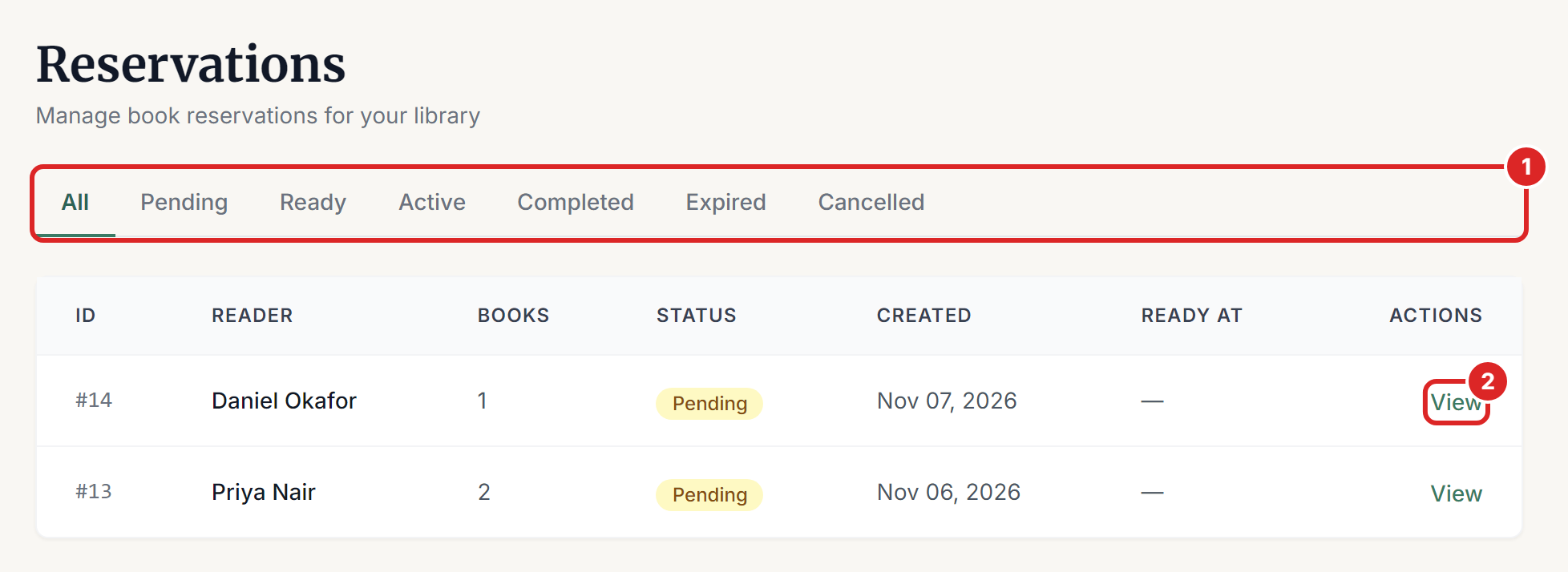
- Select Pending to see what needs your attention. The other tabs show each of the statuses above.
- Select View on a row to open the reservation.
Set the books aside
Find the book on the shelf, then select Confirm beside it on the reservation (number 1 in the picture). The system holds a copy, so nobody else can borrow it, and the book's state changes to Held. Put the book somewhere safe with the reader's name on it, and do the same for the next one.
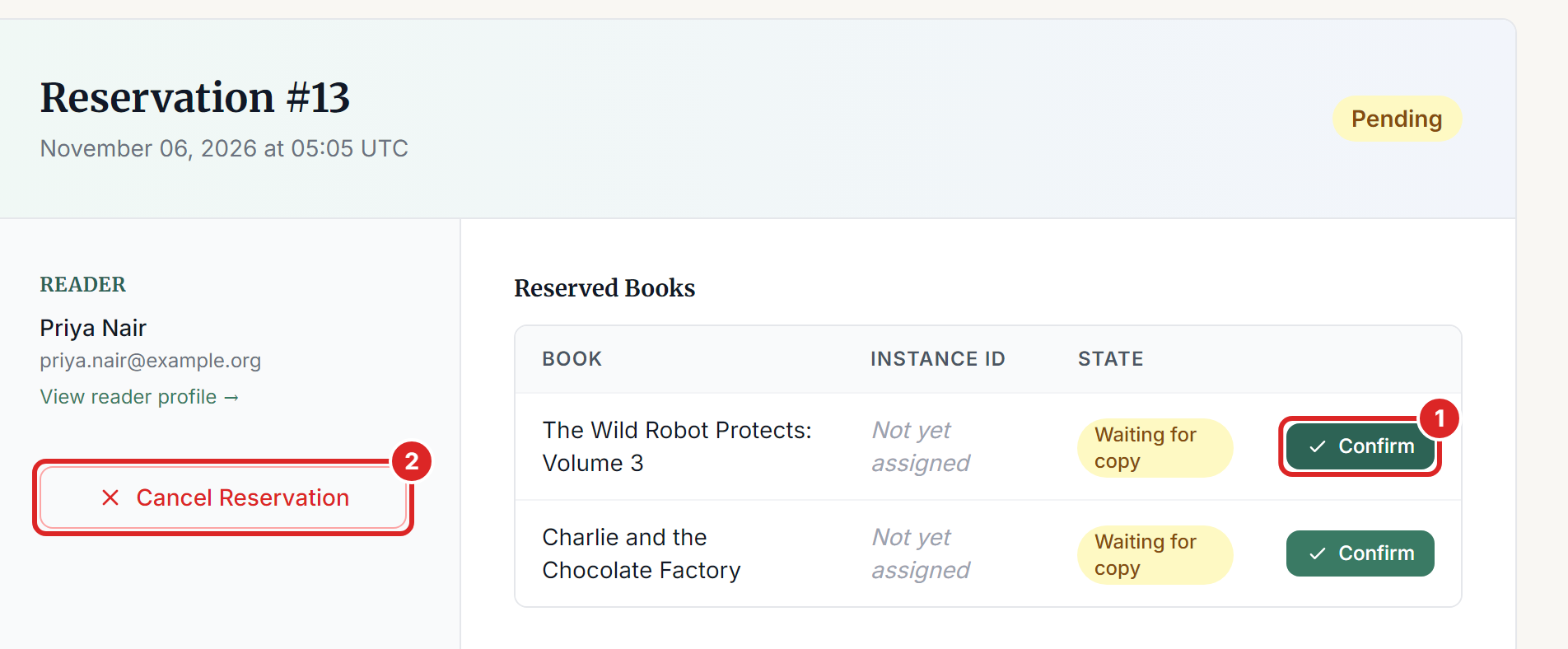
Only select Confirm when you have the book. When the last book is confirmed, the reservation becomes Ready and the reader is emailed straight away.
Hand the books over
Once a reservation is Ready, the reader has until your hold period runs out to collect it. Your hold period is set in your lending rules, and it's 3 days unless you change it.
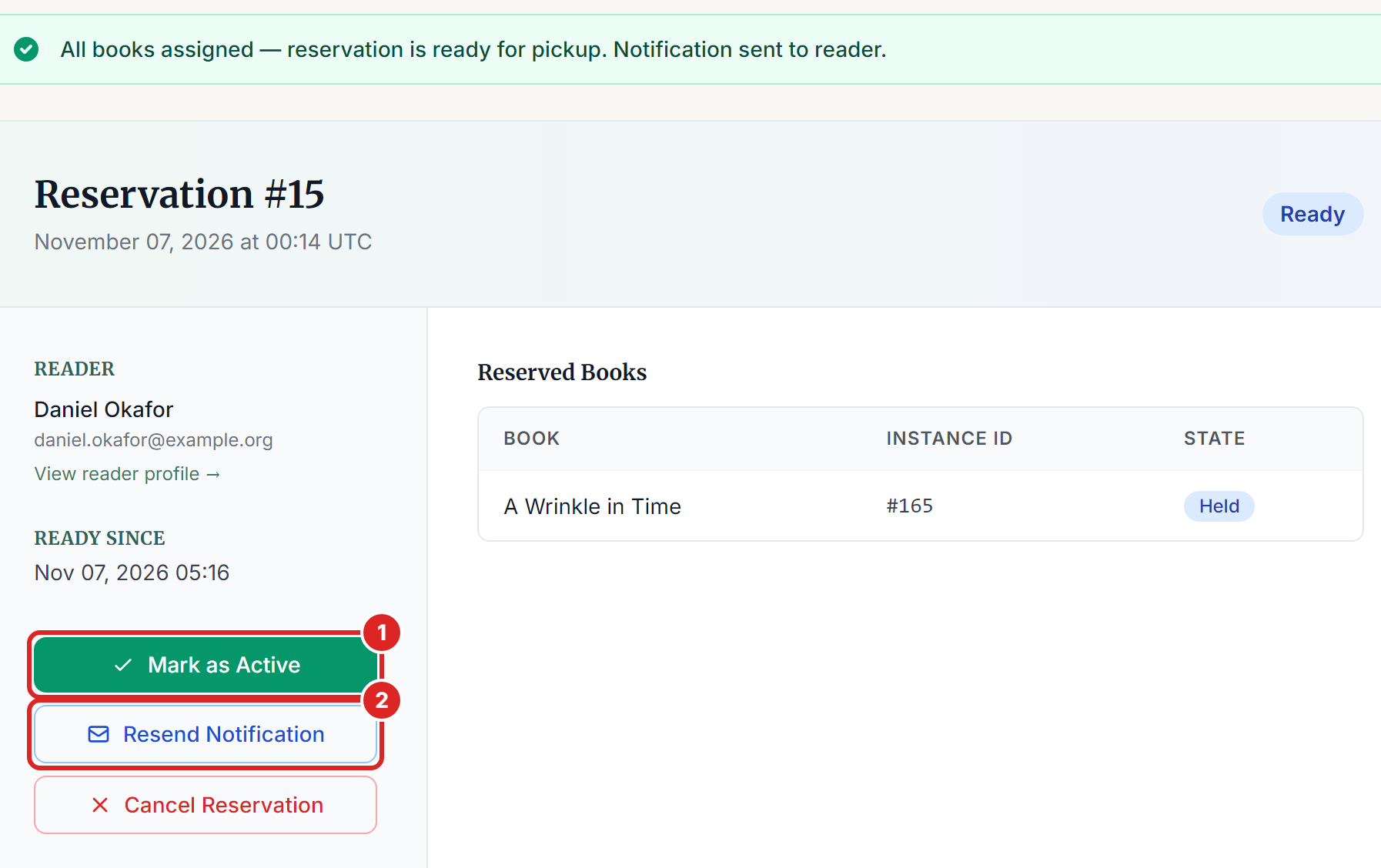
- When the reader collects the books, open the reservation and select Mark as Active. This lends every book on the reservation to the reader, with the normal due date.
- If the reader needs reminding, select Resend Notification to send the email again.
Readers can also collect their own books at a kiosk by scanning them. You don't need to do anything in that case. The reservation moves to Active by itself.
Don't use Lend a Book for a held copy. It looks for available copies and won't pick one that's on hold. Use Mark as Active.
Returns work as normal. When everything is back, the reservation changes to Completed.
Cancel a reservation
Select Cancel Reservation (number 2 in the earlier picture) on a Pending or Ready reservation and confirm. Any held books become available again, so put them back on the shelf. Readers can cancel their own reservation while it's Pending.
Once a reservation is Active it can't be cancelled, because the books are out on loan.
If a reader doesn't come
You don't need to do anything. Once the hold period has passed, a daily check releases the held copies and the reservation becomes Expired. Remember to take the books back to the shelf. If the reader collected only part of a reservation, the rest is released in the same way.
If something goes wrong
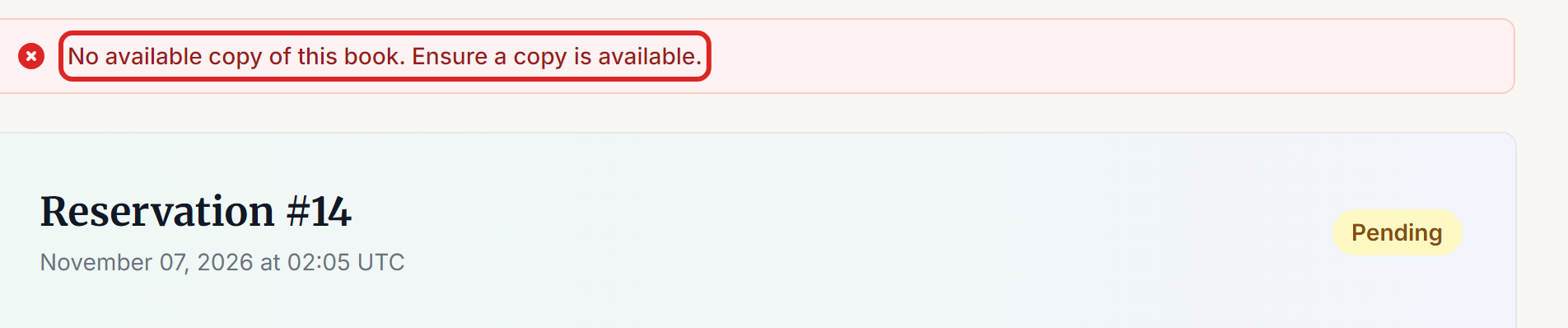
"No available copy of this book. Ensure a copy is available." Every copy is out or held. Wait for a copy to come back, then select Confirm again. If you need the reservation gone, cancel it and let the reader know.
"Conflict detected" Another pending reservation wants the same book, and there may not be enough copies for both. Your book is still held. Check the other reservation and let that reader know if they'll have to wait.
"This book is not waiting for a copy on this reservation." This book has already been confirmed, perhaps by someone else. Refresh the page.
"No books were issued." or "Some books could not be issued." The message gives the reason for each copy. It's usually a limit from your lending rules, such as the reader having too many books or an overdue book. Sort that out, then select Mark as Active again. Books already lent aren't lent twice.
"Every book on this reservation has already been issued." There's nothing left to hand over.
The reader didn't get the email. Check their email address on their page, and ask them to look in their spam folder. For a child, the email goes to the guardian. Then select Resend Notification.
Readers can't reserve books. Check your plan under My Subscription. The Reader plan doesn't include reservations.