When a book comes back, find it, say who is returning it, and confirm. You can take in a whole stack at once, even if the books came from different readers.
Find the book and the reader
Open the Dashboard and select Return a Book. Under Which books?, scan the barcode, or type the ISBN or title, and press Enter.
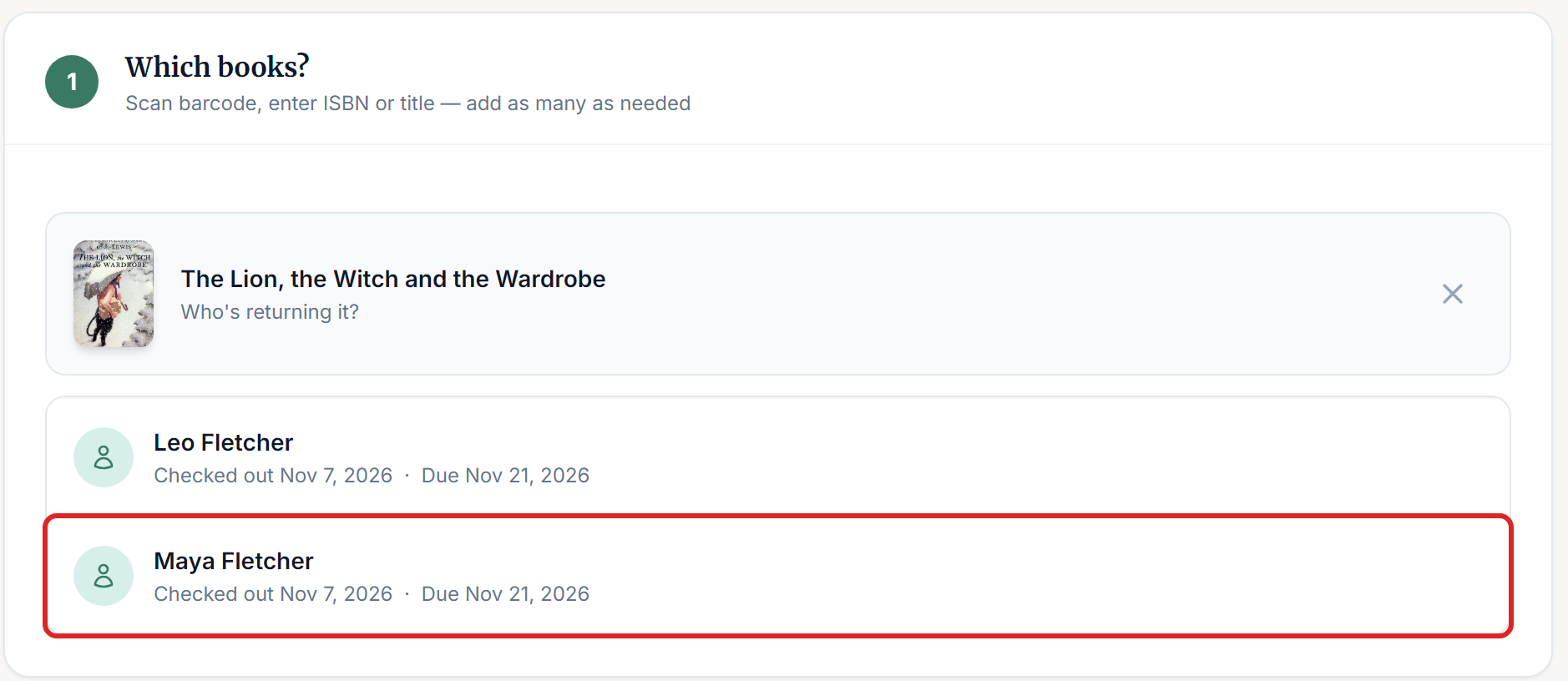
Then select the reader under Who's returning it?. You make this choice even when only one person has the book. If several readers have a copy, make sure you pick the right one.
Confirm the return
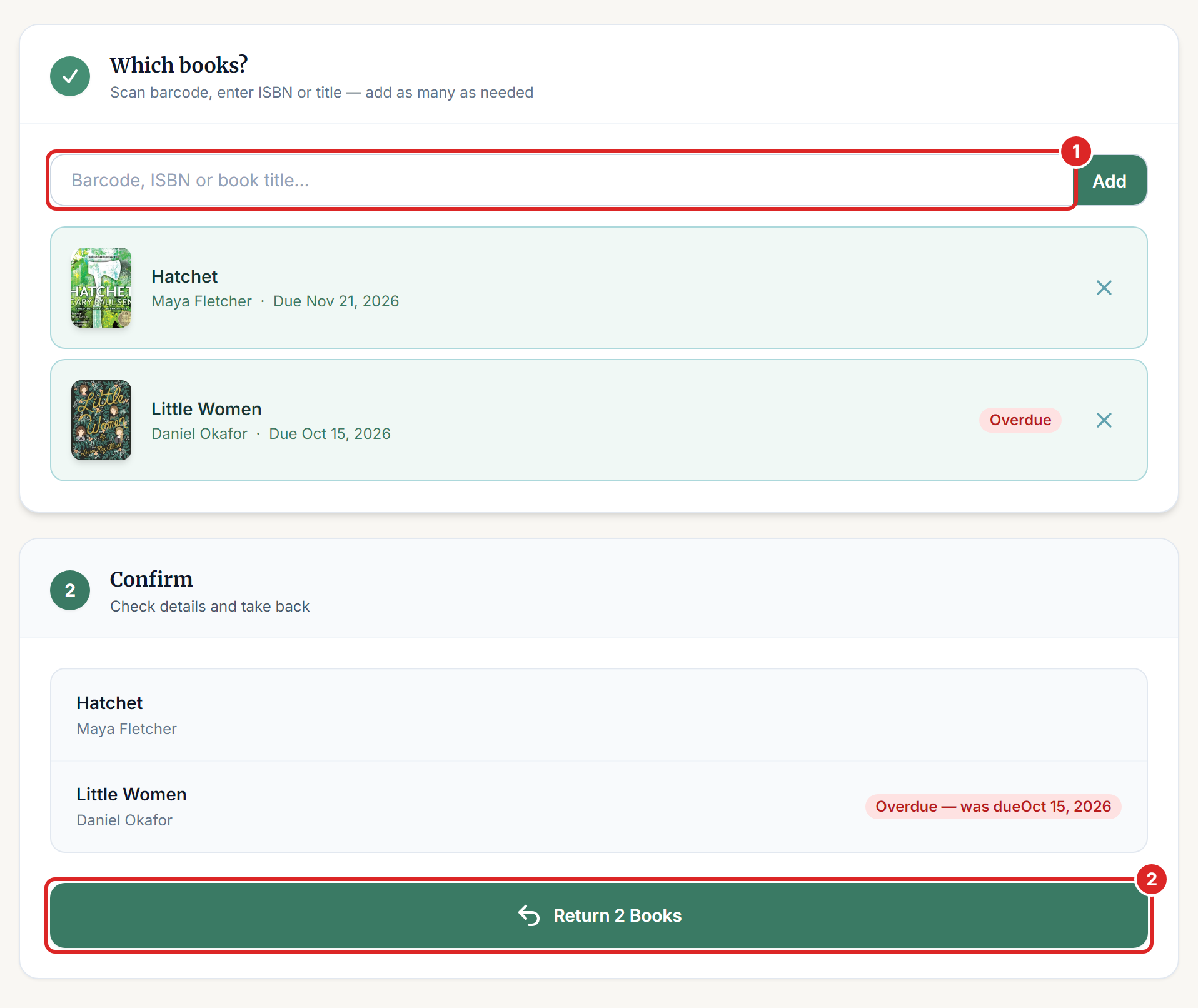
The numbers match the picture below.
Add any other books in the same way. The search box comes back after each reader you select.
Check the list under Confirm, then select Return Book. With more than one book, the button shows the number, such as Return 2 Books.
You return to the Dashboard. The copy is available to lend again straight away, and its loan moves to the reader's borrowing history.
Returning from the Circulations page
If you're looking at the list of loans already, select Circulations in the left menu, find the loan, select Return on its row and confirm. You skip the steps above, which is handy for one book.
Late, lost and reserved books
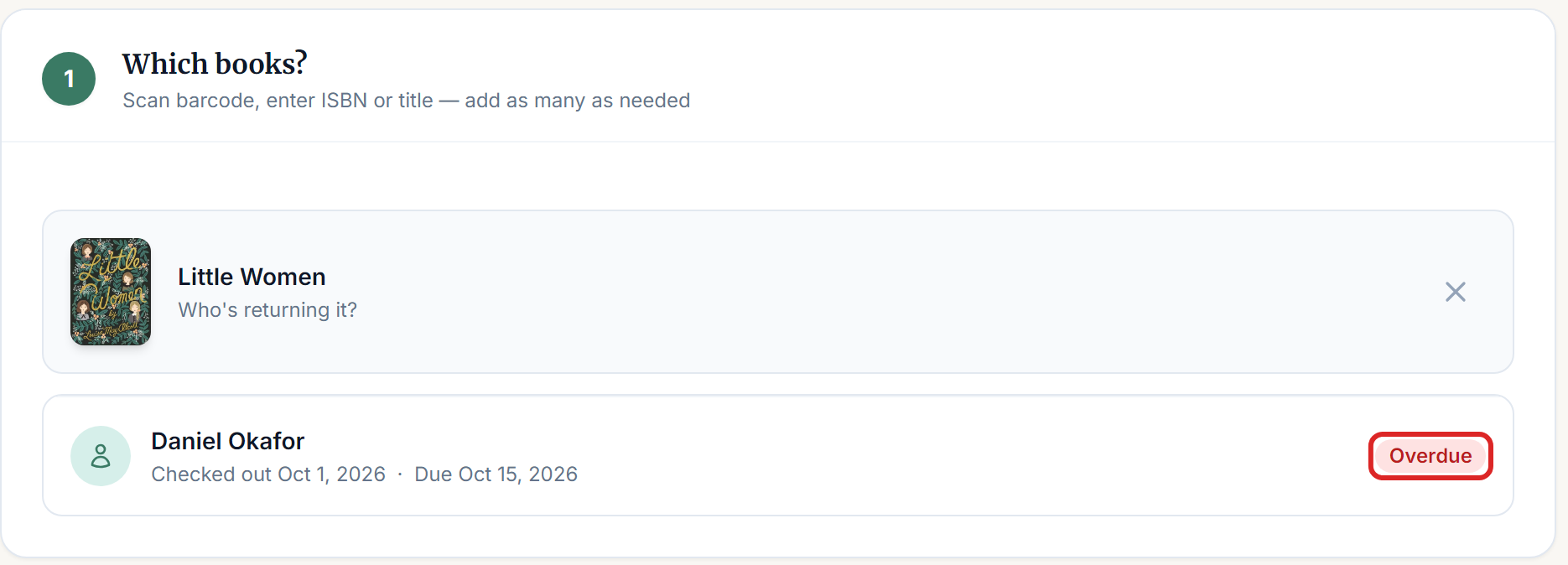
Overdue books have a red Overdue label. Return them in the same way. The system records that the book came back late, and there are no fines.
A book marked lost that turns up can also be returned here. Search for it and select the reader. The loan is closed and the copy becomes available.
A book from a reservation is returned here too. The reservation closes by itself when its last book comes back.
If something goes wrong
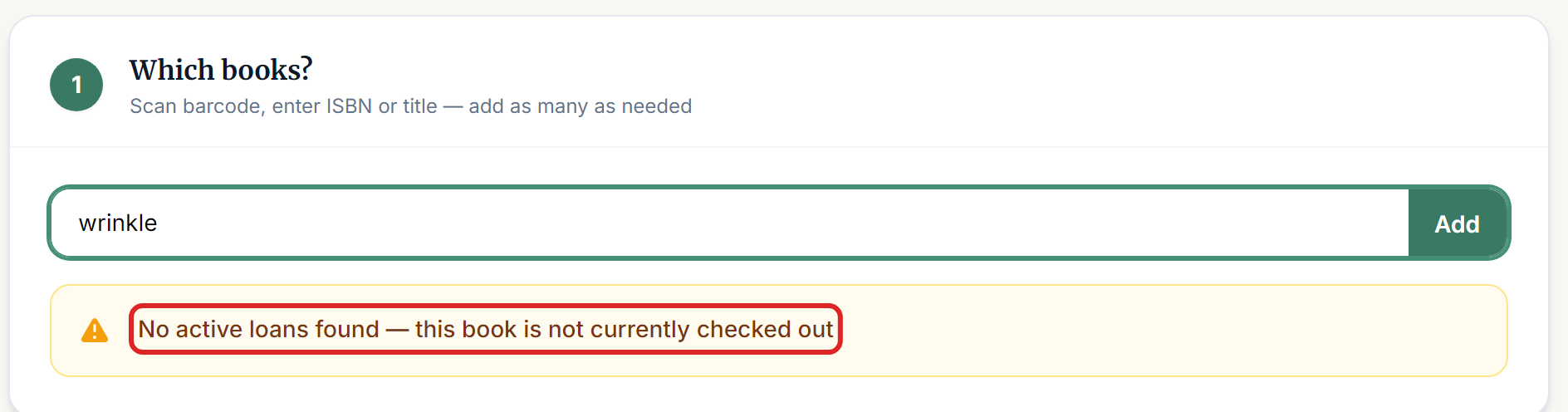
"No active loans found — this book is not currently checked out" The system doesn't think this book is out. It may have been returned already, perhaps at a kiosk, or it was never lent properly. Check the book's History tab. If you have several books with similar titles, search by ISBN, because a title search uses the first match.
"No book found matching '...'" Check the spelling or try the ISBN. The book may belong to another library you manage, so check the library name at the top of the left menu.
The wrong reader was selected. Before you confirm, select the X beside the book and add it again. If you've already confirmed, the loan is closed under that reader. Check the Circulations page to see which loans are still open, then return the right one too.
"Please select at least one book before processing the return." Add a book and select a reader before you confirm.
"This loan is not active" Someone has already returned this loan. Refresh the page to see the current state.